Nativefier – Turn Your Favourite Websites into Desktop Apps
Nativefier converts any website into a standalone desktop application with one command. It wraps the site in Electron and builds apps for Windows, macOS and Linux, each with its own window, name and icon.
- Free
- Open Source
- Cross-Platform
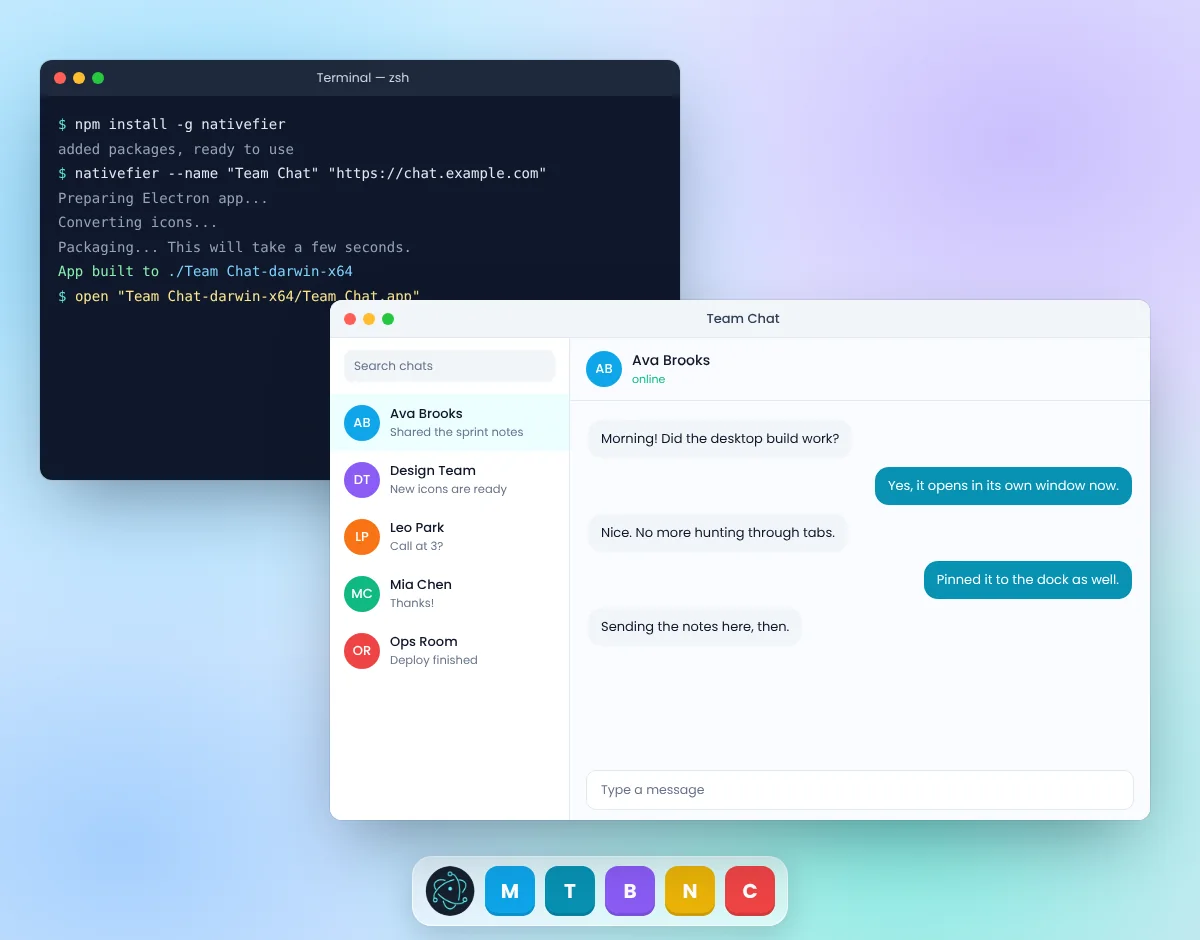
nativefier "https://example.com"What Is Nativefier?
A command-line tool that turns web pages into desktop applications without rebuilding them from scratch.
Nativefier is a free, open-source command-line tool that creates a desktop application from a website address. Instead of rebuilding a service from scratch, it takes the URL you provide and places that website inside an Electron wrapper, the framework behind many well-known desktop programs. You choose the site, and Nativefier handles the packaging work.
Electron combines Chromium with Node.js, so each generated app behaves like a focused browser window with its own name, icon, menu and settings. The result is a standalone folder or app bundle for Windows, macOS or Linux that opens your chosen service in a dedicated window, separate from your everyday browser tabs.
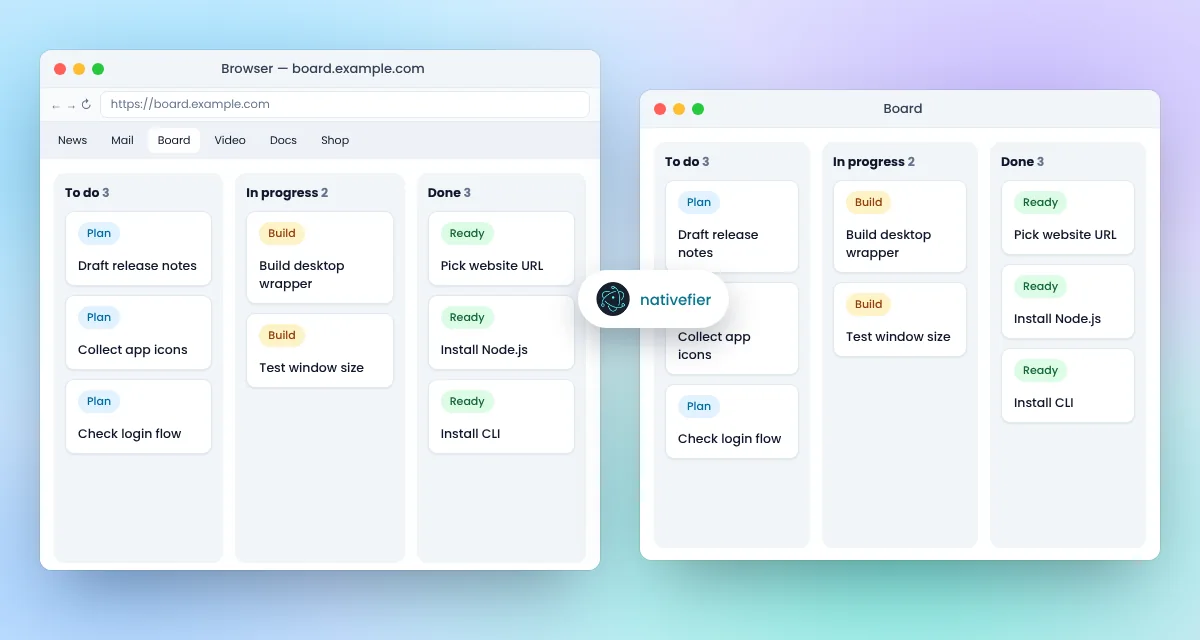
Key Features of Nativefier
The functionality that makes Nativefier useful for personal productivity and development work.
Cross-Platform Support
Build applications for Windows, macOS and Linux, and target other systems or processors with the --platform and --arch options.
Command-Line Simplicity
Create a desktop application with one straightforward command. When you skip options, Nativefier infers a name and looks for a fitting icon.
Custom App Icons
Personalise the appearance of generated applications with your own .ico, .icns or .png artwork through the --icon option.
Dedicated App Windows
Access websites outside your regular browser tabs, with options for window size, tray icons and single-instance behaviour.
JavaScript and CSS Injection
Customise website behaviour and appearance by injecting your own stylesheet or script files with the --inject option.
Free and Open Source
Access the original TypeScript source code under the MIT licence, with no licensing fees or account required.
How Does Nativefier Work?
A website is packaged inside an Electron-based desktop wrapper in four simple stages.
- 1
Provide a Website URL
Choose the site you want as an app and pass its address to the command.
- 2
Package with Nativefier
Nativefier wraps the site in an Electron shell with your chosen options.
- 3
Generate App Files
A folder named after the app, platform and architecture is created.
- 4
Launch the Desktop App
Open the executable or app bundle and use the site in its own window.
The generated app loads the live website every time it opens, so content stays as current as the site itself. The wrapper around it, including the Electron engine, stays at the version used when you built the app.
How to Install Nativefier and Create Your First App
A practical, beginner-friendly installation path that works the same way on Windows, macOS and Linux.
Install Node.js and npm
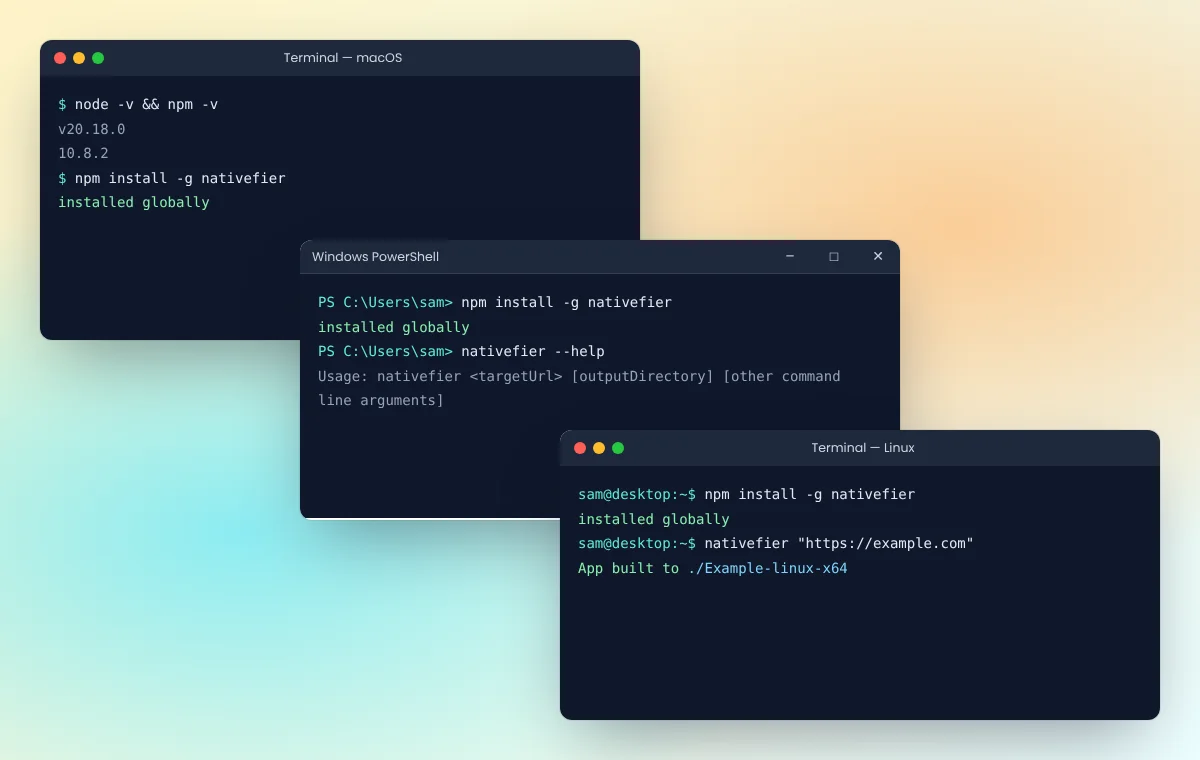
Nativefier runs on Node.js. The project README lists Node.js 16.9 or newer with npm 7.10 or newer, and a current LTS installer from nodejs.org includes both. Confirm the install in a fresh terminal:
node -vInstall Nativefier
Install the tool globally from npm so the
nativefiercommand is available in any folder. Avoid sudo on macOS and Linux; a Node version manager keeps permissions clean.npm install -g nativefierConvert a Website
Run the command with the address of the site you want. Add
--name "My App"to choose the app name yourself.nativefier "https://example.com"Open Your Desktop Application
Nativefier creates a folder in the current directory named after the app, platform and architecture, such as
Example-win32-x64. OpenExample.exeon Windows,Example.appon macOS, or theExampleexecutable on Linux.
Download Nativefier for Your Operating System
Download the original Nativefier source ZIP or choose an installation kit for Windows, macOS or Linux.
Get Nativefier from the Original Repository
The original Nativefier source archive is available from GitHub. Nativefier 52.0.0 installs through npm with Node.js on Windows, macOS and Linux.
Download Nativefier (.zip)Source archive (.zip). Requires Node.js and npm; not a standalone installer.
Windows
Command Prompt or PowerShellInstall Node.js with the Windows installer, run the npm command and open the generated .exe inside its win32 folder. PowerShell may need a script policy change.
macOS
macOS 10.13 or later per READMEUse Terminal with Node.js from nodejs.org or a version manager. The build produces a .app bundle that you can move into the Applications folder.
Linux
Common desktop distributionsInstall Node.js from your package manager or a version manager, then run the executable inside the generated linux folder. A user-level npm prefix avoids permission errors.
View Guide Download for LinuxPlatform-specific setup kit (.zip) · requires Node.js and internetThese independent setup kits contain platform-specific installation scripts and instructions, not official standalone binaries. Each installs the official Nativefier npm package.
Give Your Favourite Websites a Place on Your Desktop
The practical benefits of turning everyday websites into separate desktop applications.
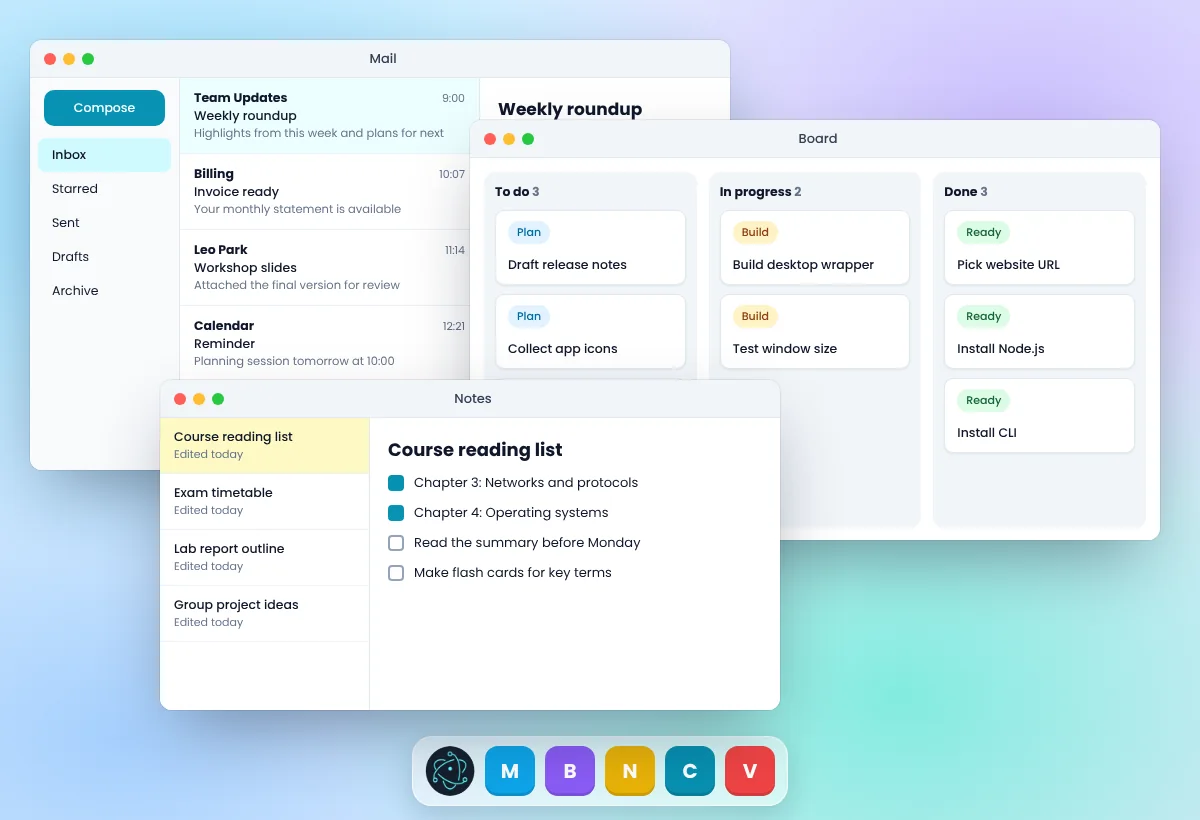
Less Browser Tab Clutter
Move everyday services out of a crowded tab bar so the browser stays focused on research and reading.
Convenient Access
Launch frequently used websites from the Start menu, Dock, taskbar or application launcher in one click.
Separate Application Windows
Arrange each web app side by side, switch with Alt+Tab or Cmd+Tab and give each its own space.
Easier Organisation of Daily Tasks
Group mail, planning and notes as distinct apps, which makes a working routine easier to follow.
Familiar Website Experience
The site looks and behaves as it does in a browser, so there is nothing new to learn.
Popular Websites You Can Turn into Desktop Apps
Practical examples of web services people often wrap with Nativefier for quick desktop access.
Compatibility varies depending on website restrictions, authentication and browser requirements. Some services block sign-in from embedded browsers or rely on DRM, so test each app and check the terms of the service you wrap.
Who Can Benefit from Nativefier?
From developers testing projects to everyday users tidying up their tabs.
Developers
Package web projects into desktop applications for experimentation and testing, try window options quickly and preview how a web app feels outside the browser.
Students
Keep frequently used learning platforms, timetables and study resources organised as separate apps that open straight from the desktop.
Business Professionals
Access web-based workplace tools such as boards, calendars and mail in dedicated application windows that stay apart from personal browsing.
Everyday Users
Open favourite websites without searching through multiple browser tabs, with a clear icon on the taskbar or Dock for each one.
Customise Your Desktop App with Nativefier
Personalise generated applications through command-line options for names, icons, windows, styles and scripts.
Choose a Custom App Name
Give the app a clear title for the window, taskbar and launcher. Without it, Nativefier infers a name from the page title.
- Wrap names with spaces in quotes
- The name also sets the output folder name
nativefier --name "My App" "https://example.com"nativefier --name "My App" "https://example.com"
Use Your Own App Icon
Supply artwork that matches the website or your own branding, so the app is easy to spot among other programs.
- Windows: .ico files
- macOS: .icns, or .png when conversion tools are available
- Linux: .png files
nativefier --icon ./icon.png --name "My App" "https://example.com"nativefier --icon ./icon.png --name "My App" "https://example.com"
Control the App Window
Set the starting size and how the window behaves alongside other programs on your desktop.
- --single-instance focuses the open window
- --tray adds a tray or menu bar icon
- --always-on-top and --hide-window-frame for compact tools
nativefier --width 1280 --height 800 --single-instance --tray "https://example.com"nativefier --width 1280 --height 800 --single-instance --tray "https://example.com"
Inject Custom CSS
Restyle the website inside your app: hide clutter, adjust spacing or enlarge text with a stylesheet of your own.
- The file must end in .css
- Use specific selectors when site styles take priority
nativefier --inject ./custom.css "https://example.com"nativefier --inject ./custom.css "https://example.com"
Open in Full-Screen Mode
Start the app in full screen for dashboards, presentations or reading, or simply maximise it with --maximize.
- --full-screen starts in full screen
- --maximize opens a maximised window
nativefier --full-screen "https://example.com"nativefier --full-screen "https://example.com"
Inject JavaScript and Tune Links
Add small scripts for shortcuts or tweaks, and decide which addresses stay inside the app.
- --inject accepts .js files too
- --internal-urls keeps matching links in the app
- --user-agent can help sites that block embedded browsers
nativefier --inject ./script.js --internal-urls ".*?example\.com.*?" "https://example.com"nativefier --inject ./script.js --internal-urls ".*?example\.com.*?" "https://example.com"
Nativefier vs Traditional Web Browsing
How opening websites in a regular browser differs from using Nativefier-generated applications.
| Functionality | Nativefier | Traditional browser |
|---|---|---|
| Dedicated application window | Yes | Depends on browser |
| Custom application name | Yes | Limited |
| Custom application icon | Yes | Depends on browser |
| Multiple website tabs | Not the main purpose | Yes |
| Desktop integration | Supported | Varies |
| Custom CSS and JavaScript | Supported | May require extensions |
| Automatic engine updates | Not guaranteed | Usually supported |
Nativefier System Requirements
What your computer needs to install Nativefier and build desktop applications.
Operating System
Windows, macOS or Linux (the README lists macOS 10.13 or later)
Software Requirements
Compatible Node.js and npm installation; the README lists Node.js 16.9+ and npm 7.10+
Interface
Command Prompt, PowerShell or Terminal
Architecture
Depends on the target platform and build, chosen with --arch (for example x64 or arm64)
Internet Connection
Required for installation and most web services
Storage
Varies by generated application, since each app bundles its own Electron runtime
Each generated app targets one platform and architecture. Build on the system you plan to use, or set --platform and --arch for another target.
Troubleshooting Common Nativefier Issues
Quick fixes for the installation and application problems people run into most often.
The terminal cannot find the command, usually because the npm global folder is not on PATH or the window was opened before Node.js was installed.
- Open a new terminal and run
nativefier --helpagain. - Run
npm config get prefixand make sure that folder (or itsbinfolder) is on PATH. - On Windows PowerShell, use Command Prompt if scripts are blocked.
Some sites refuse to render inside embedded browsers or need redirects to stay inside the app.
- Rebuild with
--user-agent firefoxor another preset. - Add
--internal-urlsfor domains the site redirects to. - Try
--clear-cacheif the page once worked.
The icon format may not match the platform, or the operating system is showing a cached image.
- Use .ico on Windows, .icns on macOS and .png on Linux.
- Rebuild the app and recreate shortcuts after changing the icon.
Sign-in pages often move between several domains, and some providers block sign-in from embedded browsers.
- Include the login domains in
--internal-urls. - Test a different
--user-agentpreset. - If the provider still blocks it, use your browser for that service.
Missing files, permissions or an incompatible Electron version can stop the app from opening.
- Keep the whole generated folder together rather than moving the executable alone.
- On Linux, make sure the executable has run permission with
chmod +x. - Rebuild with the default Electron version if a custom one fails.
Nativefier Project Status, Safety and Limitations
Transparent information about the original open-source project and what it means for your apps.

Open-Source Project
- LicenceMIT
- LanguageTypeScript
- FrameworkElectron
- RepositoryArchived, Sep 2023
The original Nativefier project is no longer maintained. The repository was archived on 29 September 2023 and is read-only, so it should not be treated as actively updated or guaranteed to be secure.
Maintenance Status
No new releases or bug fixes are planned by the original team. The last published package still installs from npm.
Security Limitations
Each app bundles a Chromium-based Electron runtime frozen at build time, which misses later security fixes unless you rebuild.
Electron Dependencies
Newer Electron releases can be selected with --electron-version, but compatibility with the archived wrapper is not guaranteed.
Website Compatibility
Sites with strict sign-in, DRM or embedded-browser checks may fail, and some services may change in ways the wrapper cannot follow.
Trusted Sources
Obtain the tool only from npm or the original repository, and avoid prebuilt apps or installers shared by unknown sites.
Logins and Data
Cookies and sessions live in each app profile. Wrap sensitive accounts with care and keep external links in your browser.
Frequently Asked Questions
Clear answers to the questions people ask most about Nativefier, its apps and the project.
Getting Started & Downloads
Yes. Nativefier is open-source software released under the MIT licence, so you can install it, use it and read its code without paying anything.
Install it from the npm registry with npm install -g nativefier, or get the source from the original nativefier/nativefier repository on GitHub. Avoid repackaged installers from unknown sites.
Yes. Nativefier is a Node.js command-line tool. The project README lists Node.js 16.9 or newer and npm 7.10 or newer.
No. You only need to paste a command into a terminal and change the website address. Coding skills help only if you want to inject custom CSS or JavaScript.
Generated apps run on Electron, which supports current Windows releases, and many people build apps on Windows 11. Because the project is archived, test each app before relying on it.
Yes. The same npm command installs Nativefier on macOS and Linux. The README lists macOS 10.13 or later, and Linux builds produce a folder with a regular executable.
Install Node.js, open a terminal, run npm install -g nativefier, then confirm with nativefier --help. Build an app with nativefier followed by a website address in quotes.
No. Nativefier runs on your own computer. Websites that promise to convert sites into desktop apps online are not part of the original project and deliver files you cannot inspect.
The npm global folder is probably missing from your PATH, or the terminal was opened before Node.js was installed. Open a new terminal and check the folder shown by npm config get prefix.
Yes, with --platform windows. Setting Windows icons and metadata from another system generally needs Wine, so building on Windows directly is simpler.
Apps, Safety & Maintenance
Most websites work, but compatibility varies. Sites with strict sign-in checks, DRM, or embedded-browser restrictions may need extra options such as a different user agent, and some may not work at all.
Only as far as the website itself supports offline use. A Nativefier app loads the live site, so most web services need an internet connection.
Yes. Use --name to set the app name and --icon to supply an .ico, .icns or .png file, depending on the operating system.
No. The original repository was archived on 29 September 2023 and is read-only. The tool still installs and works, but no further fixes are planned by the original team.
The original code is public and MIT licensed. Safety depends on downloading from npm or GitHub, wrapping trusted websites and remembering that apps bundle an Electron version that does not update itself.
Run nativefier --upgrade with the path to the existing app. It rebuilds the app using its saved settings, and you can add --electron-version to try a newer Electron release.
In the folder where you ran the command, or in the output directory you specify. Folder names follow the AppName-platform-architecture pattern, such as Example-win32-x64.
Yes. The --inject option adds your own .css or .js files to every page the app loads, and you can repeat it to include several files.
Yes. Content comes from the live website each time the app opens, so new features from the service appear without rebuilding.
Popular choices include the install-as-app feature in Chrome or Edge, Safari web apps on recent macOS versions, PWAsForFirefox and lightweight wrappers such as Pake.